
Serving all 50 States


Clover POS System
(215) 880-6638 Nationwide
Call Monday - Sunday: 8 am- 9 pm EST
Call Monday - Sunday: 8 am- 9 pm EST

Specifications
- Body Brushed aluminum with white glass accents
- Dimensions Base plate: 11.0" x 7.5”
- Max. height from countertop to display top: 9”
- Screen Large and bright 11.6” touchscreen
- Device + Hub Weight: 5.0 lbs
- Wi-Fi Ethernet Ethernet, wireless, and Bluetooth options for optimal
connectivity - Payments Encrypted swiper runs down the side of the display is designed
for maximum reliability - Power Source Reduce cord clutter with a single power source for display
and printer - Options Embedded high-resolution camera for barcode or QR code
scanning - Proprietary pivot arm swivels smoothly between merchant and customer
- Hub 4 USB ports to connect
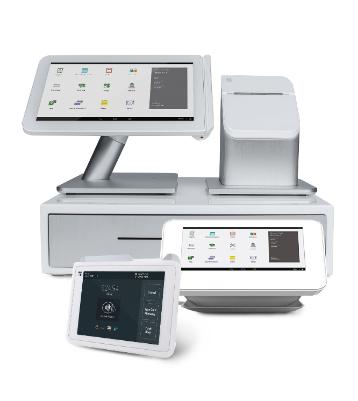
The Clover Station includes a touchscreen, encrypted swiper, cash drawer, and a high-resolution camera for
barcode and QR code scanning. Optional accessories enable you to further customize your Clover Station.
Your Clover Station comes out of the box configured just for you and ready to take payments with a simple
setup. To get even more from Clover, customize it with a variety of apps to suit your particular business.
Key features include:
barcode and QR code scanning. Optional accessories enable you to further customize your Clover Station.
Your Clover Station comes out of the box configured just for you and ready to take payments with a simple
setup. To get even more from Clover, customize it with a variety of apps to suit your particular business.
Key features include:
- Large and bright 11.6” touchscreen
- Brushed aluminum body with white glass accents
- Encrypted swiper runs down the side of the display and is designed for maximum reliability
- Embedded high-resolution camera that can be used for barcode or QR code scanning
- Proprietary pivot arm swivels smoothly between merchant and customer
- Reduce cord clutter with a single power source for display and printer
- Ethernet, wireless, and Bluetooth options
Frequently Ask Questions About The Clover Station
Clover POS System Information
Frequently Asked Questions
What are some differences between Clover Station and Clover Mobile / Clover Mini?
Barcode Scanner / Camera In order to activate the barcode scanner / camera on Clover Station and Clover Mini, tap the barcode icon on
the bottom left of the screen within any app. For Clover Station, the camera is back-facing and located on the left and for Clover Mini, the
camera is front-facing and on the…
Is Authorizations app and Bar Tab Auths app available on Clover Station?
Currently, Authorizations app and Bar Tab Auths app are available on Clover Mobile and Clover Mini devices only. These apps may be
available on Clover Station in the future.
Is an internet connection required to use a Clover device?
Important You can only process card transactions offline for seven (7) consecutive days. After seven (7) consecutive days offline, your
Clover device will disallow card transactions. You will need to be connected to the internet in order to activate your Clover device. After
activation, your Clover device will be able to function and take transactions…
What will happen if I disconnect my tethered Clover Mini?
If you accidentally disconnect your customer-facing Clover Mini from a tethered Merchant Keypad, a merchant-facing Clove Mini, or
Clover Station, your customer-facing Clover Mini will switch into merchant-facing mode and display the PIN login screen.
Are there recommended firewall settings and configurations?
Yes, our recommended firewall settings (including ports and configurations) are listed below: Important These changes need to be
made by the router or firewall administrator for the local area network. No SSL proxies: For security reasons, Clover does not allow end
users to add trusted certificates, so SSL proxies are not supported. If your network…
Printer Paper Sizes?
The Clover Station Printer takes 3 1/8” X 230’ thermal paper rolls. Clover Mini and Clover Mobile take 2 1/4″ x 85′ thermal paper rolls
(also used by the FD130 terminal). The Star SP700 Kitchen Printer (also commonly referred
What are some differences between Clover Station and Clover Mobile / Clover Mini?
Barcode Scanner / Camera In order to activate the barcode scanner / camera on Clover Station and Clover Mini, tap the barcode icon on
the bottom left of the screen within any app. For Clover Station, the camera is back-facing and located on the left and for Clover Mini, the
camera is front-facing and on the…
Is Authorizations app and Bar Tab Auths app available on Clover Station?
Currently, Authorizations app and Bar Tab Auths app are available on Clover Mobile and Clover Mini devices only. These apps may be
available on Clover Station in the future.
Is an internet connection required to use a Clover device?
Important You can only process card transactions offline for seven (7) consecutive days. After seven (7) consecutive days offline, your
Clover device will disallow card transactions. You will need to be connected to the internet in order to activate your Clover device. After
activation, your Clover device will be able to function and take transactions…
What will happen if I disconnect my tethered Clover Mini?
If you accidentally disconnect your customer-facing Clover Mini from a tethered Merchant Keypad, a merchant-facing Clove Mini, or
Clover Station, your customer-facing Clover Mini will switch into merchant-facing mode and display the PIN login screen.
Are there recommended firewall settings and configurations?
Yes, our recommended firewall settings (including ports and configurations) are listed below: Important These changes need to be
made by the router or firewall administrator for the local area network. No SSL proxies: For security reasons, Clover does not allow end
users to add trusted certificates, so SSL proxies are not supported. If your network…
Printer Paper Sizes?
The Clover Station Printer takes 3 1/8” X 230’ thermal paper rolls. Clover Mini and Clover Mobile take 2 1/4″ x 85′ thermal paper rolls
(also used by the FD130 terminal). The Star SP700 Kitchen Printer (also commonly referred
Clover for Full Service Restaurants
You can customize your Clover system to work with your full service restaurant.
You can customize your Clover system to work with your full service restaurant.
What is Clover?
Clover is an all-in-one solution for retail stores and restaurants that replaces your cash register, payment
terminal, receipt printer, and barcode scanner. You can use Clover to ring up sales, view your inventory, track
sales, manage employees, view reports and take advantage of apps to make your business more effective and
to serve your customers better.
Clover is an all-in-one solution for retail stores and restaurants that replaces your cash register, payment
terminal, receipt printer, and barcode scanner. You can use Clover to ring up sales, view your inventory, track
sales, manage employees, view reports and take advantage of apps to make your business more effective and
to serve your customers better.
Clover Software
We’ve designed Clover to grow with your business. You can install apps from Clover and third-party
companies in the App Market so Clover always fits the needs of your business. With Clover, every order,
employee clock-in, inventory adjustment is stored in the cloud. Using the Web Dashboard, you can manage
our business from anywhere you have access to the web, even if you have multiple Clover devices and multiple
locations. Also, Clover is always up to date. When you install an app on one of your Clover devices, it’s
installed on all of them.
We’ve designed Clover to grow with your business. You can install apps from Clover and third-party
companies in the App Market so Clover always fits the needs of your business. With Clover, every order,
employee clock-in, inventory adjustment is stored in the cloud. Using the Web Dashboard, you can manage
our business from anywhere you have access to the web, even if you have multiple Clover devices and multiple
locations. Also, Clover is always up to date. When you install an app on one of your Clover devices, it’s
installed on all of them.
Add an item (with variants) to inventory
Edit an item (with variants) in inventory
Delete an item in inventory
Add additional variants to an item with variants
Remove a variant from an item with variants
- Sometimes you have an item with different variations, such as a shirt that comes in many different colors or drink that comes in
different sizes. You can use the Inventory app to easily record all variations of a product.
Edit an item (with variants) in inventory
- Tap Inventory app
- Scan, search or scroll to find the item you wish to edit
- Tap the name of the item
- To edit the item name, enter the new name and tap Save Name
- To edit a specific variant, tap on that variant
- Make the changes you wish to make (like changing the Price or Quantity)
- Tap Save
- Tap Done when finished
Delete an item in inventory
- Tap Inventory app
- Tap Items tab
- Search, scan or scroll to find the item you wish to delete
- Tap the name of that item
- Tap Delete Item
- Tap Delete to confirm your change
Add additional variants to an item with variants
- Open the Inventory app.
- Scan, search or scroll to find the item you wish to edit.
- Tap the name of the item.
- Tap the Edit Attributes & Options button.
- Tap the Add New Option button for each option you wish to add (you cannot currently add a new attribute).
- Tap the Save button when finished.
- Tap the Create Variants button.
- To apply changes to the selected items, tap the Continue button.
- If no changes are required, tap the Add Variants button.
- Edit the individual variants (price, etc.) if necessary.
- Tap the Done button when finished.
Remove a variant from an item with variants
- Open the Inventory app.
- Scan, search or scroll to find the item you wish to edit.
- Tap the name of the item.
- Tap the variant you wish to delete.
- Tap the Delete Item button.
- Tap the Delete button to confirm the deletion of the variant
Add a new category to inventory
Add or remove multiple items from a category
- Tap Inventory app
- Tap Categories tab
- Tap Add New Category
- Enter the name of the new category
- Tap Done
- (Optional) Add items by tapping the Edit Items In This Category
- Tap Save when finished
Add or remove multiple items from a category
- Tap Inventory app
- Tap Categories tab
- Scroll or search to find the category you wish to edit
- Tap Edit Items In This Category
- Use the checkboxes to add or remove items from the category
- Tap Done when finished adding items
- Tap Save when you have finished editing the category
Employees
- Set up employees
- Permissions
- Clocking in / clocking out
- Shift Reports
Set Up Tables
Add a table
Specify table sizes (number of seats)
For your servers to be able to place customer orders, you need to specify the
size of each table (that is, the maximum number of seats at the table) using the
Tables app on a Clover device.
To set up table sizes:
See an overview of tables in your restaurant
In the Tables app, you can see an overview of the tables in your restaurant with
various views.
Add a table
- Open the Tables app.
- Tap the Manage Tables tab.
- Tap the Add Table button.
- Tap the default number of seats at that table.
- Tap the Table Number field and enter an identifier.
- You can use numbers and/or letters.
- Tap the Save button when finished.
Specify table sizes (number of seats)
For your servers to be able to place customer orders, you need to specify the
size of each table (that is, the maximum number of seats at the table) using the
Tables app on a Clover device.
To set up table sizes:
- Open the Tables app on a Clover Station.
- Tap the Manage Tables tab at the top of the screen.
- If the table doesn’t exist, tap the Add Table button. If your table does
exist, tap the Edit button to the right of the chosen table. - Tap the maximum number of seats at the table.
- Tap the Table Number field and enter an identifier. You can use letters
and/or numbers or a combination. Examples: C3, Booth 2, G-2, 12. - Tap the Done button.
- Tap the Save button. You’ve finished setting up this table.
- Repeat steps 3-7 until you’ve entered all of the tables in your restaurant.
See an overview of tables in your restaurant
In the Tables app, you can see an overview of the tables in your restaurant with
various views.
- To see an overview of the tables in your restaurant:
- Open the Tables app.
- Tap one of the tabs at the top of the screen.
- If you don’t see the Your Tables tab at the top of the screen, tap the
Previous button until you do. - To see just the tables assigned to you, tap the Your Tables tab at the top
of the screen. - To see all of the tables in a list view, tap the All Tables tab at the top of
the screen. - To see all of the tables in a grid view, tap the Quick View tab at the top of
the screen. - In Quick View, tables are color-coded to show:
- Status (for example, if the table is open or closed).
- Which tables are assigned to you vs. other servers.
- Tables assigned to you will be either:
- Dark green (table is open with orders taken).
- Light green (table is closed with no orders taken).
- Tables assigned to others will be either:
- Gray (table is open with orders taken).
- White (the other server’s is closed with no orders taken).
Manage Tables
Claim or unclaim tables
Release or clear a table
Change the number of guests at a table
For your servers to be able to place customer orders, you need to specify the size
of each table (that is, the maximum number of seats at the table) using the
Tables app on a Clover device.
To change the number of guests at a table:
Add a seating group
Rename a table or seating group
You can use the Tables app to rename a table or a seating group.
To rename a table or seating group:
On a Clover Station, open the Tables app.
Tap the Manage Tables tab at the top of the screen.
If you don’t see Manage Tables at the top of the screen, tap the Previous button
until you do.
Tap the Edit button for the table or seating group you want to rename.
Enter the new name, then tap Save.
You’ve renamed the table or seating group.
Move all guests to another table
Open the Tables app.
Tap the Your Tables tab at the top of the screen if not already selected.
Tap the table whose guests you wish to move.
Tap the Move Table button.
Select the table or seat to move the guests to.
Note
You can only move guests to tables that have yet to accept payment (open tables)
or seats in a seating group that are currently open.
Move guest(s) to another table
Open the Tables app.
Tap the Your Tables tap at the top of the screen if it’s not already selected.
Tap the table where the guest currently resides.
Tap the Leave Table button associated with that guest.
Tap the Move to Another Table button to move the items to a new table with the
guest, then specify which table the guest is moving to.
Tap the Pay for Items button if the guest is paying for their items before the move
tables.
Tap Leave Items for Table to Pay if the original table will pay for the guest’s items.
Claim or unclaim tables
Release or clear a table
- Open the Tables app.
- Tap the Your Tables tab if it’s not already selected.
- Tap the table you want to release.
- Tap the Release Table button to make the table available for the next
guests. - Note
- Releasing a table saves the order to the Orders app; the order will appear
as “Open”. - Releasing a table does not unclaim the table. The owner of the table will
remain the owner of the table.
Change the number of guests at a table
For your servers to be able to place customer orders, you need to specify the size
of each table (that is, the maximum number of seats at the table) using the
Tables app on a Clover device.
To change the number of guests at a table:
- Open the Tables app on a Clover Station.
- Tap the All Tables tab at the top of the screen.
- If necessary, scroll down to the Tables section of the list (below the
Seating Groups section, if any.) - Tap the table you want to change.
- In the Number Seated section at the top of the screen, tap the minus or
plus icons to decrease or increase the number of guests sitting at the
table. - Tap the Done button, then you’re done.
Add a seating group
- Open the Tables app.
- Tap the Manage Tables tab.
- Tap the Add Seating Group button.
- Enter the name of the seating group (like “Bar” or “Patio”).
- Tap the Save button when finished.
Rename a table or seating group
You can use the Tables app to rename a table or a seating group.
To rename a table or seating group:
On a Clover Station, open the Tables app.
Tap the Manage Tables tab at the top of the screen.
If you don’t see Manage Tables at the top of the screen, tap the Previous button
until you do.
Tap the Edit button for the table or seating group you want to rename.
Enter the new name, then tap Save.
You’ve renamed the table or seating group.
Move all guests to another table
Open the Tables app.
Tap the Your Tables tab at the top of the screen if not already selected.
Tap the table whose guests you wish to move.
Tap the Move Table button.
Select the table or seat to move the guests to.
Note
You can only move guests to tables that have yet to accept payment (open tables)
or seats in a seating group that are currently open.
Move guest(s) to another table
Open the Tables app.
Tap the Your Tables tap at the top of the screen if it’s not already selected.
Tap the table where the guest currently resides.
Tap the Leave Table button associated with that guest.
Tap the Move to Another Table button to move the items to a new table with the
guest, then specify which table the guest is moving to.
Tap the Pay for Items button if the guest is paying for their items before the move
tables.
Tap Leave Items for Table to Pay if the original table will pay for the guest’s items.
Take an order
You can use the Tables app to take an order for table or seating group.
To take an order for a table or seating group:
On a Clover Station, open the Tables app.
Send items to the assigned order printer
After you take an order from your guests, you can use the Tables app to send items to one or more order
printers so the kitchen can prepare the items.
To send unprinted items to the assigned order printer:
On a Clover Station, open the Tables app.
One-tap printing / Firing orders (Tables app)
To fire an order:
You can use the Tables app to take an order for table or seating group.
To take an order for a table or seating group:
On a Clover Station, open the Tables app.
- Tap the Your Tables tab at the top of the screen.
- If you don’t see the Your Tables tab at the top of the screen, tap the Previous button until you do.
- To start taking orders for a table, tap Open. To start taking orders for a seating group, tap the check
name (see example below). - If the table or seating group was unclaimed, Clover will automatically assign it to you.
- You can change the number of guests seated by tapping the minus or plus sign in the upper right
corner. - To add an item for the whole table (for example, an appetizer), tap the Add Items button in the Whole
Table row. To add an item for a specific guest, tap the Add Items button in the guest’s row. - On the Current Order screen:
- The name in the top left confirms whom the order is for (for example, “Whole Table” or “Guest 1”).
- Either choose an item from the menu shown, scan a barcode, or search for items (at the top of the
screen). The items you’ve ordered for this guest appear in the left column. - To order the same item more than once:
- Tap the item in the menu to order the same item again, or first tap Quantity, the number requested, and
then the item. - To change an item on the order:
- Tap the item in the left column, You can change the quantity, or the modifiers (tap Edit Modifiers in the
top right corner). - To remove an item from the order:
- Tap the item in the left column, tap Remove Item, then tap Save.
- When you’re done entering items for this guest, tap Done to return to the list of guests, or tap the left or
right buttons in the bottom left to go directly to the next guest’s order. - When you’re ready, you can send items to an order printer.
- The label Printed will appear in red after an item has been printed.
- If an item was already printed, it will not print again.
- Only items assigned a label will print. Assign a label to an item.
- Troubleshooting: Nothing happens when you tap the Fire button.
Send items to the assigned order printer
After you take an order from your guests, you can use the Tables app to send items to one or more order
printers so the kitchen can prepare the items.
To send unprinted items to the assigned order printer:
On a Clover Station, open the Tables app.
- Tap the table for which you’d like to send items to the printer.
- If you don’t see the Your Tables tab at the top of the screen, tap the Previous button until you do.
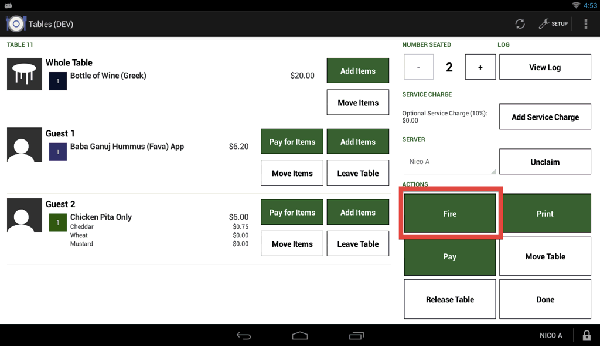
- Tap the Fire button to send items (that have not already been printed) to an order printer.
- The label Printed will appear in red after an item has been printed.
- If an item was already printed, it will not print again.
- If you have not assigned a label to an item, it will not print.
One-tap printing / Firing orders (Tables app)
To fire an order:
- Tap the Tables app to open it.
- Add items for the order.
- Tap the Fire button.
- Unprinted items that have an assigned printer will print to that printer. Items that have not been
assigned to a printer will not print. Once items have been printed, you’ll see Printed under the item for
that guest.One-tap printing / Firing orders (Tables app)
Take payment
To accept payment from a table or seating group:
Accept payment from one guest at a table of multiple guests
A table may host one or multiple guests, and you can accept payment per guest, per item, or any
combination of the two.
Split payment by custom amount
To accept payment from a table or seating group:
- On a Clover Station, open the Tables app.
- Tap the table for which you’d like to take payment.
- If you don’t see the Your Tables tab at the top of the screen, tap the Previous button until you do.
- Tap the Pay button near the lower right corner of the screen.
- After you complete the payment process, you won’t be able to order additional items for guests at this
table or seating group. - Select a printer to print the order receipt.
- You can now deliver the receipt to the guest.
- Pay Full Amount is pre-selected in the center column.
- You can also split the payment by items, by guest, or a custom amount.
Accept payment from one guest at a table of multiple guests
A table may host one or multiple guests, and you can accept payment per guest, per item, or any
combination of the two.
- To accept payment from one guest at a table with multiple of guests:
- On a Clover device, tap the Tables app to open it.
- Tap the applicable table.
- Tap the Pay for Items button to the right of the guest that wants to pay.
- You’ll see a list of items from the table’s order, with the items associated with the applicable guest
selected. Verify this is the case, and then tap the green Next button in the bottom right of the screen. - Tap the guest’s payment type, and complete the transaction as you typically would.
Split payment by custom amount
Print one bill for all guests
Print a separate bill for each guest at a table
- Open the Tables app
- Tap the Your Tables tab at the top of the screen.
- Tap the Print button
- Tap the Print Bill button
Print a separate bill for each guest at a table
- In a full service restaurant, typically you’ll print the bill and deliver it to a table when the guests are ready
to pay. You can do this using the Tables app. - To print a separate bill for each guest at a table:
- On a Clover Station, open the Tables app.
- Tap the Your Tables tab at the top of the screen.
- If you don’t see the Your Tables tab at the top of the screen, tap the Previous button until you do.
- Tap the Print button.
- Tap the Print Guest Bills button.
- When the bills print, you can deliver them to each guest at the table.
Clock out at the end of a shift
Clock out after the current time
Clock out after the current time
- Log into the Clover Station
using your PIN number - Open the Shifts app
- Tap the Clock In/Out tab
- Tap the Change Clock Out
Time button - When prompted, have the
manager enter their PIN
number to approve the
request - Change the time using the
sliders - Tap the Done
- button when finished
- Tap the Clock Out
View Reports
instead of being calculated into the business’ total or revenue. Tips are calculated
from card transactions only.
Tips Due, etc.
- Tap Reporting app
- Tap Payments tab
- Tap Show Today to view today’s payments or adjust the date by tapping
From and To to view the payments made during the time period specified
- Summary (Total = Revenue + Tax)
- Gross Payments
- Gross Refunds
- Gross Manual Refunds
- Net
- Note
instead of being calculated into the business’ total or revenue. Tips are calculated
from card transactions only.
- Tender Stats (Payments – Refunds – Manual Refunds = Net)
- Any tender stats that were used to pay within this report will display below
- Cash Reports (The sum of Net Cash Sales for all devices = Tender Stats
Cash Net) - Cash reports for each specific Clover device will display
- Payments by Card Type
- Different card networks that were used to pay within the date / time
specified will display - Note
- Payments by Card Type includes credit and debit card payments, but not
credit and debit refunds. - Employee Stats
- Different employees who took payments or refunds will display
Tips Due, etc.

View “Orders” report
Orders report details the orders
created during the time period
specified, not necessarily the orders
that have been paid for during the time
period specified.
View “Refunds” report
The Refunds report is based on the
date / time of refund transaction
completion.
.
View “Payments” report (Orders app)
The Payments report in Orders app is
based on the date / time of payment
completion.
.
View “Line Items” report
The Line Items report displays items
that were added to orders created (not
necessarily paid for) during the date /
time range specified.
.
View “Manual Refund” report
Orders report details the orders
created during the time period
specified, not necessarily the orders
that have been paid for during the time
period specified.
View “Refunds” report
The Refunds report is based on the
date / time of refund transaction
completion.
.
View “Payments” report (Orders app)
The Payments report in Orders app is
based on the date / time of payment
completion.
.
View “Line Items” report
The Line Items report displays items
that were added to orders created (not
necessarily paid for) during the date /
time range specified.
.
View “Manual Refund” report
Add Tips & Close Out
Employees & Permissions
Menu & Inventory
Payments & Transactions
- See which orders have tips added, edit tips, and close out orders
Employees & Permissions
- Manage employee accounts, roles, shifts, and access to apps and Web Dashboard
Menu & Inventory
- Add, edit, and manage your inventory and stock by customizing your modifiers, labels, and categories
- Order & Item Discounts
Payments & Transactions
- Take all forms of payments, issue refunds, edit tax and signature settings, process split payments and refunds, and
view reports
- Assign and print items to their designated printers, edit receipt settings, print and reprint customer and order receipts,
and send e-receipts
- See how your business is doing by viewing reports based on payments, employees, items, discounts, etc. over a
specified period of time
- Learn about Clover security features, such as two-factor authentication, 4 and 6 digit employee PINs, and the
technology Clover uses to keep your business information secure.
- Add items, modifiers, and discounts to an order, save and reopen orders, and take payments from Register app and
Tables app
- View and edit customer information, view previous order history for a particular customer, and search for customers to
place new orders
Clover for Quick Service Restaurants
- Clover Overview
- Clover Devices
- Device & Web Dashboard
Basics - Set up Inventory
- Set up Employees
- Open at the Start of the Day
- Customize your Clover System
- Handle a Transaction
- Close Out at the End of the Day
- Grow your business with QSR
apps - The Clover App Market
- View Reports
Clover for Retail & Service
You can customize your Clover
system to work with your retail
business. You can use Clover to track
your inventory and sales, use
compatible barcode scanners to
improve transaction speeds, and
accept multiple forms of payment.
You can customize your Clover
system to work with your retail
business. You can use Clover to track
your inventory and sales, use
compatible barcode scanners to
improve transaction speeds, and
accept multiple forms of payment.
- Clover Basics
- Set up your Clover Solution
- Set up Inventory
- Set up Employees
- Handle a Transaction
- Grow your business with retail
apps - Close out at the End of Day
- View Reports
Clover for Retail
Import Inventory Guide
In a retail business, inventory management is essential. In order to efficiently import all of your inventory (and manage it from an Excel
document), this guide covers using an Excel document to manage your inventory with Clover, importing that Excel document, and exporting the
Excel template from the Inventory app on the Clover Web Dashboard.
Clover Station
You can use the Web Dashboard to export an inventory spreadsheet. This spreadsheet is not only a record of all your inventory items, it
can also be edited and imported to Web Dashboard to make changes to your inventory. This is useful if you need to edit your spreadsheet
and are either away from your business or away from your Clover device.
Import Inventory Guide
In a retail business, inventory management is essential. In order to efficiently import all of your inventory (and manage it from an Excel
document), this guide covers using an Excel document to manage your inventory with Clover, importing that Excel document, and exporting the
Excel template from the Inventory app on the Clover Web Dashboard.
Clover Station
- Download the Template
- Download the inventory / menu spreadsheet
You can use the Web Dashboard to export an inventory spreadsheet. This spreadsheet is not only a record of all your inventory items, it
can also be edited and imported to Web Dashboard to make changes to your inventory. This is useful if you need to edit your spreadsheet
and are either away from your business or away from your Clover device.
- Fill Out the Template
- Fill out inventory spreadsheet (Items tab)
- Leave the Clover ID field (Column A) blank – Clover will generate these automatically upon import
- Enter the name of the item under the Name header (Column B)
- You cannot import items with the same – if necessary, try adding a descriptor like “Small” to differentiate the item
- Enter the price of the item under the Price header (Column C)
- Enter the type of price under the Price Type header (Column D) – there are three valid values for price type
- FIXED: A predetermined price that rarely changes
- VARIABLE: A price that is entered at the time of sale
- PER_UNIT: A price per unit of the item sold, like ounces or pounds
- If the price type is PER_UNIT, enter the unit name under the Price Unit header (Column E)
- We recommend using the abbreviation of the unit, like oz. (ounce), lb. (pound), etc.
- Enter the tax rates to be associated with the item under the Tax Rates header (Column F) – there are three different ways to do this
- #1: If the item will simply be associated with the default tax rates, enter DEFAULT
- #2: If the item will be associated with a non-default tax rate, enter the name of tax rate (like “Sales Tax”)
- #3: If the item will be associated with multiple tax rates (at least one of which is non-default), you will need add a new row for each tax rate
- Example based on #3:

When entering a barcode, make sure to include the leading digit at the front of the barcode and the trailing digit on the end of the barcode
Example:

Enable Clover stock tracking & auto-decrement
Update stock quantities
Enable 3rd party stock tracking
Update stock quantities
Enable 3rd party stock tracking

 |
| |
 |
| |
 |
| |
 |
| |
 |
Fill out form, a Sales Consultant will call you within 5 minutes to 12 hours


(215) 880-6638
Serving all 50 States, Call the Nationwide Sales Number
Call Sales Monday to Sunday 8 AM to 8 PM EST - NO MONEY DOWN!
Call Sales Monday to Sunday 8 AM to 8 PM EST - NO MONEY DOWN!
Everything you need to make running your business easier. All in one simple solution.
Clover™ Station's all-in-one hardware, software, customized apps and merchant account allows you to do it all.
Take payments, view inventory, track sales, manage employees, and add custom apps for your business.
Clover™ Station Features:
Clover™ Station's all-in-one hardware, software, customized apps and merchant account allows you to do it all.
Take payments, view inventory, track sales, manage employees, and add custom apps for your business.
Clover™ Station Features:
- All-in-One Hardware
- Point-of-Sale Software
- Customized Apps
- Merchant Account- Accept all major credit cards including ApplePay
- Get the lowest credit card processing rates and fast funding from your merchant account
- U.S. Based Support, 24/7/365
The Clover POS Station is an innovative cloud-based solution that delivers freedom and control to
simplify your business operations, connect with customers, and grow with your successes. Every
feature, from the patent-pending swivel arm that engages customers at the counter, to the brushed
aluminum and white glass accents, to the multiple USB port accessibility in the printer. The base was
designed with small businesses in mind.
This bundle includes the Clover station, printer assembly and a cash drawer.
simplify your business operations, connect with customers, and grow with your successes. Every
feature, from the patent-pending swivel arm that engages customers at the counter, to the brushed
aluminum and white glass accents, to the multiple USB port accessibility in the printer. The base was
designed with small businesses in mind.
- Easy set up lets you start taking payments in minutes
- Manage your business from anywhere, anytime
- Access new features and capabilities as you need them
- Process payments online and off-line
- Beautifully designed with your needs in mind
This bundle includes the Clover station, printer assembly and a cash drawer.
- 36 Month Leasing plans are available, please contact us for details.
- Purchase NO Money Down!
- No Contract for Merchant Services
Clover POS Station simplifies the day-to-day tasks of running your business. This next-generation
solution arrives preloaded with everything you need to streamline your operations.
solution arrives preloaded with everything you need to streamline your operations.
- Automatically track inventory and build records for every transaction.
- Build customer loyalty and drive repeat sales with loyalty solutions such as PerkaTM.
- Safeguard customer card data and protect your business with TransArmor®.
- Customize your Clover™ to meet your specific business needs with apps from Clover’s dedicated app
market.
- Access your business information from anywhere at any time on your smartphone, computer or tablet with
Clover’s Web dashboard.
- Identify product trends, gain insight into customer habits and benchmark your business against local
competition with the InsighticsSM analytics solution.
- Be prepared to accept EMV chip cards and all types of payments
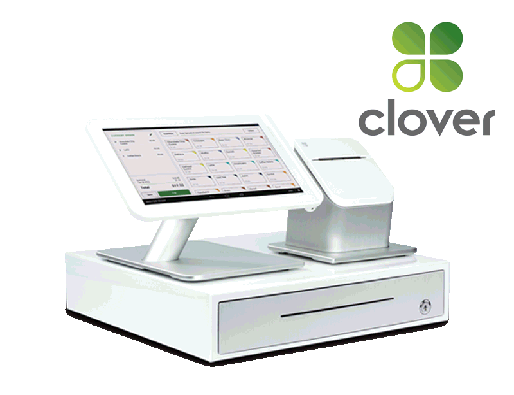
Clover Station for Restaurants, QSR, Fine Dining, Bars, Casual Dining, Retail Stores, Salons, and Services
(215) 880-6638


The Clover takes less than three seconds for EMV Chip Card transactions
Clover POS Station for Restaurants
Tables for Clover
Order Pad for Clover
Online Order for Clover
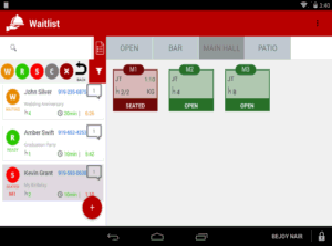
- Clavo’s free table management app for restaurants is a one-stop control center for
restaurant managers. Simply arrange your tables by section and you can seat parties
easily, assign wait staff, and monitor table activity. Clavo Tables also helps you monitor
service. Each stage of the customer lifecycle is shown real time: It immediately updates
when a table is open
Order Pad for Clover
- Clavo Order Pad allows servers to take orders right at the table and give customer
exactly what they want. Gluten free? Sauce on the side? Extra pickles?
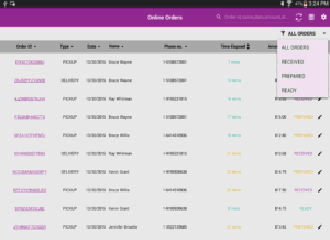
Online Order for Clover
- Take the take-out market by storm. Whether on their phone or computer, take outorders
are a great way to boost sales.
Clover POS Station for Retail Stores
STOCK
- When a customer asks if you have more of a particular item, you want to be able to give them an
immediate answer.
- This app monitors your current inventory, checks availability at other stores, and creates reorder
guides among other sales information.
GIFT CARDS
- What’s one of the best ways to get a shopper through your doors? Have someone give them a gift
card.
- Use this app, which gives you the ability to sell both digital and physical gift cards, and your business
is guaranteed to receive a big boost with little effort.
SOCIAL MEDIA MARKETING WITH BESOCIAL
- Provide outstanding customer service not just in your store, but on social media as well. Sign up for
this tool and effectively share messages, photos, and offers with people on Facebook and Twitter.
- It also helps you monitor your reputation on Yelp and Google.
ANALYTICS
- Give the people what they want. The easy-to-read dashboard on this app reveals your top-sellers—
making it possible for you to always keep those items on your shelves.
- It also shows your best-performing employees, too. (Reward them with a bonus!)
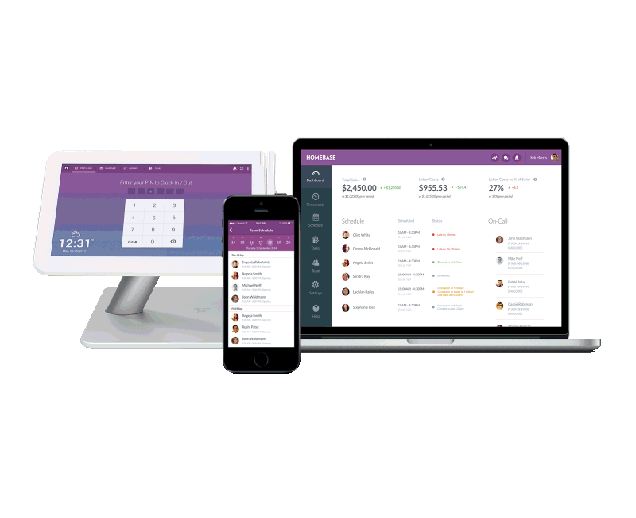
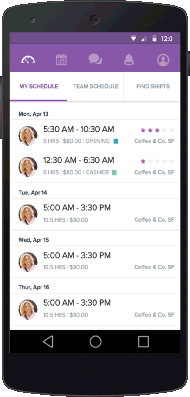
TIME CLOCK BY HOMEBASE
- This management tool gives them the ability to clock in and out, obtain their schedule via email and
text message, submit time-off requests, receive reminders one hour before shifts, request shift trades
and more.
CASH TRACK
- Keeping track of every single greenback is one of the more difficult tasks for a small business owner.
- The Cash Track app enables you to easily monitor what’s coming in and going out at each register
and to reconcile things at the end of the day.
INSIGHTS
- You don’t need to spend a fortune to be a data-driven small business in today’s tech world.
- Analyze your sales and learn about selling opportunities and trends that you should hop onto that will
make your store more successful.
ABREEZE LINK FOR CONSTANT CONTACT
- Sending automatic emails expressing your gratitude and linking in-store purchase data with email
marketing campaigns helps you stay in touch with shoppers, strengthening your relationship with them.
SELL ONLINE
- Launch and manage your e-commerce business directly from your Clover POS.
- This app creates a beautiful online store
ECOMMERCE SYNC FOR CLOVER
- This app integrates them in one place, eliminating the labor previously required to reconcile in-store
and online sales with your total inventory.
BRINGG DELIVERIES FOR CLOVER
ONLINE ORDER FOR CLOVER
GIFT CARDS FOR CLOVER
TIME CLOCK BY HOMEBASE FOR CLOVER
CASH TRACK FOR CLOVER
COMMERCE SYNC FOR CLOVER
FEEDBACK ABOUT YOUR BUSINESS
- enables your company to make deliveries on-time and as efficiently as possible by
assigning orders to drivers and planning timesaving routes.
- Your customers will love it because it allows them to see where their delivery is in real-
time.
ONLINE ORDER FOR CLOVER
- Customers will appreciate that they can see a current menu, place an order directly via
desktop or smartphone, and receive text updates about their order’s status.
GIFT CARDS FOR CLOVER
- Gift cards make it easy for your regulars to treat their friends and family to an outing at
their favorite spot. In just minutes, you can easily sell them physical and digital gift cards
at the register with this app.
TIME CLOCK BY HOMEBASE FOR CLOVER
- .Improve your own productivity with this app, which tracks clocking ins and outs, breaks,
and overtime, manages time-off requests, and makes it easy for workers to swap
swifts.
CASH TRACK FOR CLOVER
- monitoring cash in and out, calculating tips, and printing shift reports.
COMMERCE SYNC FOR CLOVER
- Links with Quicken Books or Xero devotee, this app allows you to connect that record-
keeping system with your Clover for seamless accounting.
FEEDBACK ABOUT YOUR BUSINESS
- This app automatically invites every single customer to tell you his or her likes and
dislikes about your business.
- Even better? Since you make it easy for customers to leave feedback, they’re less
likely to leave negative comments on public websites such as Yelp or Facebook.
Clover POS Station for Quick Serve Restaurants
Remember Every Client.
- Build relationships with your customers by showing them you remember their preferences.
Clover’s Salon Scheduler
- not only lets you schedule customers with ease, it has a Customer Journal with an instant view of their
past appointments so you can remember who did their hair last time and what they like.
Customer Connect Rewards
- lets you look up customers by name, phone or email or enroll them right at the cash register. Offer
Branded Gift Cards.
- You can use your Clover POS system to apply the value of a gift card to a customer’s purchase, check
card balances and reload it as often as you wish with the eCard Gift Card app.
Offer Something Special
- Automatic Marketing helps you create custom offers for your best customers like a free service on
their birthday.
Reduce the Wait Time
- Don’t make walk-ins sit around and wait: Waitlist Me sends text and phone call notifications to alert
customers when it’s their turn
Clover POS Station for Salons
Clover Apps to help you sell more
- Clover Online Store
- Clover Rewards
- Clover Gift Cards
Clover Apps to help you
Run Your Business
Run Your Business
- Accounting
- Business Dashboard
- Clover Insights
- Employee Scheduling
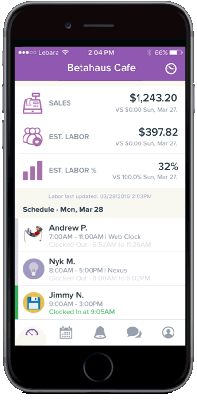
Clavo Waitlist
- Lets the hostess check customers in with their names and cell phone numbers.
- Because Clover Waitlist works together with Clover Tables, Maître D’s can give more
accurate estimates of wait times and send a text message to customers when their tale
is ready.

(215) 880-6638 Nationwide
Call 7 Days a Week 8AM to 9PM
Call 7 Days a Week 8AM to 9PM
© 2008-2017 Complete Merchant Service. All rights reserved
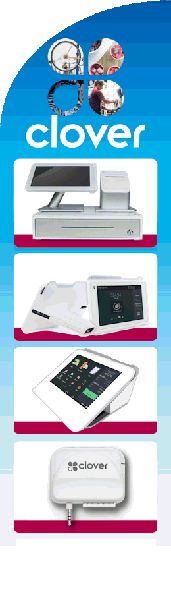
Fill out form, a Sales Consultant will call you within 5 minutes to 12 hours

Clover APP Market. Customize Your Clover
Daily Email Report
by Abreeze Technology
A daily digest of your business's vital numbers!
TECKPAY TAXI
by TeckPay, LLC
TeckPay Taxi allows you to charge customizable fares on rides
Remote Pay
by Zoomifi, Inc
Take payments on any web enabled computer using the Clover Mini
Upsell
by Merchantech
Increase sales by suggesting customers to upgrade their purchase
Top Up: Purchase Orders
by Abreeze Technology
Creating and managing purchase orders has never been this easy!
Clavo OrderPad
by KIPOS LABS INC
Restaurant Order handling simplified
HostBuddy
by AppVoyage
Front Desk using text and AI
Automatic Reports
by Tursus Software
Reports created for your business, automatically and everyday.
CoinOut
by Coin Out Inc
Never stock your register with coins again! And earn 1% back on the change you pay
out.
Clavo Waitlist
by KIPOS LABS INC
Reduce customer wait times in your restaurant with effective waitlist management
Springboard Retail
by Springboard Retail
Springboard Retail is a mobile POS and retail management system designed for
retailers, by retailers.
Easy Reports
by Zoomifi, Inc
Get Easy Reports and Calculate Commissions the way you want them.
Free Gift Card, Marketing & Fundraising Platform
by GiftFly.com LLC
The fastest, most convenient custom gift card solution for every business.
Clavo Tables
by KIPOS LABS INC
Restaurant Table Management made easy
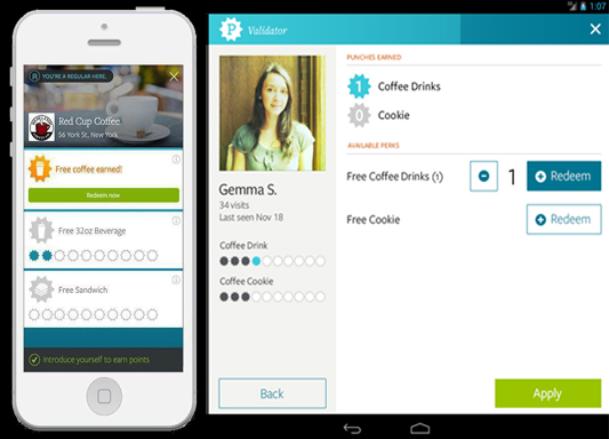
Punch Card Rewards
by Loyal Loops
A PUNCH CARD REWARDS & LOYALTY APP WITH FULL CUSTOMIZATION
Schedule Discounts
by Merchantech
Schedule and manage your discounts
Smart Assign
by Merchantech
Easily assign customers to each order
Mobile Sales
by Tursus Software
Making sales on the go? Track your mobile sales and get more customers!
MiPOINT For Micros
by eMagid Corp
MiPOINT For Micros
Promos
by Perka, Inc
Automatically contact your repeat customers and bring them back whenever you want
Returns
by Abreeze Technology
Easily return inventory when processing a refund or exchange!
Location Clone
by Abreeze Technology
Easily copy your Clover configuration to a new location!
Spend X
by Merchantech
Reward customers by encouraging them to spend more money
US$3.99/month
Easy Order
by Zoomifi, Inc
Shortcut Ordering! Perfect for Fast Paced Restaurants and Bars
US$4.99/month
DataPoint
by SoftPoint
Your External POS's (Micros, POSitouch, Dinerware & More) EMV & Ordering Solution.
Schedule
by Homebase
Free time clock, scheduling, employee management, tip tracking, timesheets, and
communication
Feedback
by Perka, Inc
The easiest way to connect with your customers.
Tip Pooling
by Supertill
Tip Pooling, Revenue Sharing and Single-Cashier Establishments!
The Drink Exchange
by Drink Exchange
Stock Market Drink and Food Pricing. Increase profits, attract Customers, and push
Inventory
Franchise Royalty Payments
by Abreeze Technology
Automate Franchise Royalty Payments!
FiveStars Integration
by FiveStars
FiveStars is the leading rewards program for small businesses that’s proven to bring
customers back more often.
iCabbi PIM
by iCabbi USA
Giving taxi fleets a great way to let their passengers pay for their journey
FREE
Nutshell
by Noster Mobile
Decision making data in a nutshell. Key performance information designed to enable
business owners and managers to improve profitability.
FREE (upgrades available)
Items with Variants
by Abreeze Technology
Create items with variants from the web
FREE (upgrades available)
InvoiceASAP for 2000 Terminal, QuickBooks and Xero Compatible
by InvoiceASAP
Easy POS with Invoicing and Customer Management. Syncs with QuickBooks
Desktop, QuickBooks Online, and Xero.
Starts at US$30.00/month
Free trial available
Online Ordering for WordPress
by Merchantech
Online Ordering Made Easy
US$20.00/month
Free trial available
MiPoint Orders
by Cloudable Holdings LLC
Mobile EMV payment solution that connects to existing POS systems from Clover mini
and mobile devices.
FREE
Bundle Discounts
by Merchantech
Offer Bundle Discounts and Sell More
US$4.99/month
Free trial available
Print Customer Info
by Zoomifi, Inc
Print Customer's Information on Bill and Payment Receipts
US$1.99/month
Free trial available
Showtimes
by Orlando Ticket Store
Local Showtimes and seating charts for Orlando and Tampa Entertainment
FREE
Online Store
by Clover
Add a beautiful site to your Clover account and start selling online.
FREE
ePayment
by Simple POS
Request online payments from your customers via email and SMS notifications.
Starts at US$19.99/month
Usage fees
Free trial available
SimpliNotes
by Infuse
SimpliNotes, your notes all in one place.
Seed QSR
by ITsoft
Simple Ordering - Big Results!
Donate Here
by Zoomifi, Inc
Turn your Clover Mini into a Donation Box
B-Fi
by Atomical Softwares LLC
HotSpot for Customers & Business Owners Made Easy
VivaSpot Wi-Fi
by iValu8
Offer free Wi-Fi to automatically collect emails, social check-ins, feedback, and offer
instant coupons
Kwik Menu
by Given Data, LLC
Kwik Menu - Online Ordering: Quick, Easy, Economical and High Performing
Daily Email Report
by Abreeze Technology
A daily digest of your business's vital numbers!
TECKPAY TAXI
by TeckPay, LLC
TeckPay Taxi allows you to charge customizable fares on rides
Remote Pay
by Zoomifi, Inc
Take payments on any web enabled computer using the Clover Mini
Upsell
by Merchantech
Increase sales by suggesting customers to upgrade their purchase
Top Up: Purchase Orders
by Abreeze Technology
Creating and managing purchase orders has never been this easy!
Clavo OrderPad
by KIPOS LABS INC
Restaurant Order handling simplified
HostBuddy
by AppVoyage
Front Desk using text and AI
Automatic Reports
by Tursus Software
Reports created for your business, automatically and everyday.
CoinOut
by Coin Out Inc
Never stock your register with coins again! And earn 1% back on the change you pay
out.
Clavo Waitlist
by KIPOS LABS INC
Reduce customer wait times in your restaurant with effective waitlist management
Springboard Retail
by Springboard Retail
Springboard Retail is a mobile POS and retail management system designed for
retailers, by retailers.
Easy Reports
by Zoomifi, Inc
Get Easy Reports and Calculate Commissions the way you want them.
Free Gift Card, Marketing & Fundraising Platform
by GiftFly.com LLC
The fastest, most convenient custom gift card solution for every business.
Clavo Tables
by KIPOS LABS INC
Restaurant Table Management made easy
Punch Card Rewards
by Loyal Loops
A PUNCH CARD REWARDS & LOYALTY APP WITH FULL CUSTOMIZATION
Schedule Discounts
by Merchantech
Schedule and manage your discounts
Smart Assign
by Merchantech
Easily assign customers to each order
Mobile Sales
by Tursus Software
Making sales on the go? Track your mobile sales and get more customers!
MiPOINT For Micros
by eMagid Corp
MiPOINT For Micros
Promos
by Perka, Inc
Automatically contact your repeat customers and bring them back whenever you want
Returns
by Abreeze Technology
Easily return inventory when processing a refund or exchange!
Location Clone
by Abreeze Technology
Easily copy your Clover configuration to a new location!
Spend X
by Merchantech
Reward customers by encouraging them to spend more money
US$3.99/month
Easy Order
by Zoomifi, Inc
Shortcut Ordering! Perfect for Fast Paced Restaurants and Bars
US$4.99/month
DataPoint
by SoftPoint
Your External POS's (Micros, POSitouch, Dinerware & More) EMV & Ordering Solution.
Schedule
by Homebase
Free time clock, scheduling, employee management, tip tracking, timesheets, and
communication
Feedback
by Perka, Inc
The easiest way to connect with your customers.
Tip Pooling
by Supertill
Tip Pooling, Revenue Sharing and Single-Cashier Establishments!
The Drink Exchange
by Drink Exchange
Stock Market Drink and Food Pricing. Increase profits, attract Customers, and push
Inventory
Franchise Royalty Payments
by Abreeze Technology
Automate Franchise Royalty Payments!
FiveStars Integration
by FiveStars
FiveStars is the leading rewards program for small businesses that’s proven to bring
customers back more often.
iCabbi PIM
by iCabbi USA
Giving taxi fleets a great way to let their passengers pay for their journey
FREE
Nutshell
by Noster Mobile
Decision making data in a nutshell. Key performance information designed to enable
business owners and managers to improve profitability.
FREE (upgrades available)
Items with Variants
by Abreeze Technology
Create items with variants from the web
FREE (upgrades available)
InvoiceASAP for 2000 Terminal, QuickBooks and Xero Compatible
by InvoiceASAP
Easy POS with Invoicing and Customer Management. Syncs with QuickBooks
Desktop, QuickBooks Online, and Xero.
Starts at US$30.00/month
Free trial available
Online Ordering for WordPress
by Merchantech
Online Ordering Made Easy
US$20.00/month
Free trial available
MiPoint Orders
by Cloudable Holdings LLC
Mobile EMV payment solution that connects to existing POS systems from Clover mini
and mobile devices.
FREE
Bundle Discounts
by Merchantech
Offer Bundle Discounts and Sell More
US$4.99/month
Free trial available
Print Customer Info
by Zoomifi, Inc
Print Customer's Information on Bill and Payment Receipts
US$1.99/month
Free trial available
Showtimes
by Orlando Ticket Store
Local Showtimes and seating charts for Orlando and Tampa Entertainment
FREE
Online Store
by Clover
Add a beautiful site to your Clover account and start selling online.
FREE
ePayment
by Simple POS
Request online payments from your customers via email and SMS notifications.
Starts at US$19.99/month
Usage fees
Free trial available
SimpliNotes
by Infuse
SimpliNotes, your notes all in one place.
Seed QSR
by ITsoft
Simple Ordering - Big Results!
Donate Here
by Zoomifi, Inc
Turn your Clover Mini into a Donation Box
B-Fi
by Atomical Softwares LLC
HotSpot for Customers & Business Owners Made Easy
VivaSpot Wi-Fi
by iValu8
Offer free Wi-Fi to automatically collect emails, social check-ins, feedback, and offer
instant coupons
Kwik Menu
by Given Data, LLC
Kwik Menu - Online Ordering: Quick, Easy, Economical and High Performing
Clover APP Market. Customize Your Clover
Cross Sell
by Merchantech
Cross Sell encourages employees and staff to sell additional products
Zuppler Online Ordering
by Zuppler
Your Brand. Our Solution.
Gift Cards
by LoyLap
Gift Cards and Stored Value Cards; flexible to your needs and integrated perfectly with
your Register App.
FoodKonnekt Online Ordering Platform
by mKonnekt
An online ordering platform integrated with your POS
FREE (upgrades available)
BOGO
by Merchantech
Create BOGOs (Buy One Get One Offers) to help sell more products
US$4.99/month
Free trial available
by Rovely
Convert in-store customers into online followers. Boost your social marketing
audience.
US$18.00/month
Free trial available
Trezoro Loyalty
by Trezoro Limited
Points or punchcards. A loyalty and rewards program that works as hard as you do.
Loyalty
by LoyLap
Loyalty by LoyLap connects you with your customers through a custom loyalty system.
The most comprehensive and powerful loyalty platform, now available on your Point of
Sale
S
Delivery Fee
by Zoomifi, Inc
Add a Delivery Fee to any order with one click!
Customer Add
by Simple POS
Add customer information at any point in your checkout flow
SimpliDone
by Infuse
SimpliDone, a simple task manager for your business.
RetailCP Restaurant Orders Display
by RetailCP
Restaurant Orders App separates display views by Label, for each kitchen preparation
area 'Starters', 'Mains', 'Hot food', 'Desserts', 'Drinks'.
S
Customer Referral Reward
by BuyFi
Acquire new customers with referrals from your existing customers
Clavo Online Order
by KIPOS LABS INC
Fully integrated online ordering experience for your restaurant
Starts at US$49.99/month
Driver Assign
by Zoomifi, Inc
Assign a Driver or Second employee to an Order
Boppl Mobile Ordering
by Boppl Ltd
Boppl is an powerful ordering app allowing the customer to order and pay easily.
Saving you valuable time, every time.
Clover Browser
by Clover
Browse the Internet
F
Customer Assign
by Zoomifi, Inc
Assign a customer to an order!
Clavo HUB
by KIPOS LABS INC
Store management taken to the next level. Clavo HUB provides you with the tools to
manage your restaurant from virtually anywhere
S
Booker-Clover Mini Connector
by Booker
Clover Mini and Booker work together to help you effortlessly manage your entire
service business, and get back to doing what you love, servicing your customers.
FREE
Social Branding
by Zoomifi, Inc
Print Facebook, Twitter, Google+ and other Social Media Icons on your receipts
Print Your Logo
by Zoomifi, Inc
Print Your Company's Logo on the Customer's Receipt
U
Trivia Nights!
by Quickdraw Studios
The simplest way to host Trivia Night
Local Ads
by BuyFi
Facebook ads to reach local customers
F
Wash Dry Fold
by Avirdis
A point of sale system for your dry cleaner's, or your laundromat's wash dry fold service
HR Resources
by Homebase
F
MAVN Online Ordering
by MAVN
MAVN: Online Ordering with a Human Touch. A highly customized, intuitive online
ordering platform for the modern restaurant
Menufy Online Ordering
by Menufy
Menufy brings online ordering to your restaurant! Get a FREE e-commerce website
designed around your brand and menu. Setup takes less than 5 minutes!
InvoiceASAP for Pro Plan, QuickBooks and Xero Compatible
by InvoiceASAP
Easy POS with Invoicing and Customer Management. Syncs with QuickBooks
Desktop, QuickBooks Online, and Xero.
S
Fun and Games
by Abreeze Technology
FREE Fun and FREE Games
Usage fees
Food on a Truck
by Tursus Software
Location & Schedule Management, Social Media Automation, and Sales Dashboard
with reporting by location and hours.
F
Connected Company
by Dynamic Digital Advertising, LLC.
First there was snail mail. Then there was e-mail. Now there is POS-mail.™
US$9.95/month
Gift Cards
by Gyft
The ultimate gift card solution for your business.
Usage fees
Smart Discounts & More
by Merchantech
Sell more products with Smart Discounts
Starts at US$4.99/month
Free trial available
Fast Food Orders Display
by RetailCP
Fast Food Orders Display. Yummy 'No printers'
Customer Survey
by Tursus Software
Provides the feedback you’re missing to get customers coming back and loving your
business.
Pizza Builder
by Apprication
Easily manage the pizza ordering process with a fast and user friendly interface
Chargeback Fighter
by POS Business Solutions
Fight chargebacks with pictures!
Opt-In Rewards
by Opt-In Media Corp.
Increase Your Sales Revenue by Building a Customer Database & Marketing to It!
Hopr
by Noster Mobile
Manage your customer engagement on Facebook, Twitter & Instagram
U
IVU
by BankTech LLC
IVU integration for Clover
ScandGo Mobile
by E-COMXS
Customer Manager
by Customer Connect LLC
Synchronize your customers with Customer Connect Marketing Platform
Fuel
by Pay At The Pump Solutions
Fuel allows you to take payments at the pump and sell gas inside your store !
U
Rocket Responder
by Abreeze Technology
RocketResponder simplifies email marketing for small businesses, helping them
grow one customer at a time.
Merchant Keypad Pay Display
by Clover
Take payments from the Clover Merchant Keypad
Check Acceptance
by TeleCheck
Help your business grow by accepting a popular payment type.
FREE
Clover is an Affordable and Powefurl POS System
Merchant Services for Retail Stores
We can help your Retail Store with accepting payments
- We can help your business, track customer, accept all
types of payments and reward your customers with a
loyalty program. During the holidays we can set you up to
sell gift cards. The Clover POS System is the perfect
solution for retail stores
We can help your Retail Store with accepting payments
- Clothing Stores
- Shoe Stores
- Retail Stores
- Gift Shops
- Furniture Stores
- Jewelry Stores
Merchant Services for Restaurants
We can help your Restaurant with accepting payments
- Our Business Consultants specialize in helping
restaurants with credit card processing, and Restaurant
POS System Set up for all types of restaurants and bars
We can help your Restaurant with accepting payments
- Quick Serve QSR Merchant Services
- Full Service Restaurant Merchant Services
- Fine Dining Merchant Services
- Casual Dining Merchant Services
- Food Truck Merchant Services
- Pizzerias
- Sandwich Shops
- Bagel Shops
- Bars
Merchant Services for Home Improvement
We can help your prService with accepting payments
- Home Improvement Contractors will increase their sales
and customer base by offering credit cards as a form of
payment. We offer the Clover Mobile and Clover Go for
payments in the field.
We can help your prService with accepting payments
- General Contractors
- Plumbers
- Electricians
- Handyman
- Roofers
- Services
Merchant Services for Salons
We can help your Salon with accepting payments
- Accepting credit cards at a salon is very important for
retaining customers and offering them a loyalty program
will keep them coming back. The Clover POS System will
help you sell more salon services and retail products.
We can help your Salon with accepting payments
- Hair Salons
- Nail Salons
- SPA's
Avoid liability for card fraud with EMV™-enabled terminals.
Credit card fraud losses, which topped $10 billion in 2014, typically are the responsibility of the card issuer. After October 1, 2015, everything changes. Fraudulent
chip card transactions on non-EMV compliant terminals will result in the liability shifting to merchants, putting their businesses and reputations at risk. By embracing
EMV technology, you’ll be protecting your business from the liability and your customers will feel better than ever about doing business with you.
What’s EMV?
EMV stands for Europay, Mastercard®, and Visa®, and is the gold standard of payment transaction processing for most of the world. This year, EMV chip cards –
credit cards with small microchips embedded in them - are coming to the U.S. EMV improves payment security by making it harder to use cards fraudulently or even
duplicate them.
No more swiping – just a simple dip or tap.
Chip card payments are different, so you need to know what to expect. Instead of a cashier swiping a credit or debit card, the customer will now either “dip” the card
into an EMV slot or “tap” the card on your sales terminal – either way the consumer keeps the card in his or her possession throughout the transaction.
Time to make some changes.
Chances are EMV is still somewhat new to you,
so figuring out what to do next may be unclear. First it’s important to understand what EMV means for you and your business – it’s a way to add more security to in-
store transactions. But to do that, you may need to make some hardware changes, as most terminals are not ready to take EMV payments.
Credit card fraud losses, which topped $10 billion in 2014, typically are the responsibility of the card issuer. After October 1, 2015, everything changes. Fraudulent
chip card transactions on non-EMV compliant terminals will result in the liability shifting to merchants, putting their businesses and reputations at risk. By embracing
EMV technology, you’ll be protecting your business from the liability and your customers will feel better than ever about doing business with you.
What’s EMV?
EMV stands for Europay, Mastercard®, and Visa®, and is the gold standard of payment transaction processing for most of the world. This year, EMV chip cards –
credit cards with small microchips embedded in them - are coming to the U.S. EMV improves payment security by making it harder to use cards fraudulently or even
duplicate them.
No more swiping – just a simple dip or tap.
Chip card payments are different, so you need to know what to expect. Instead of a cashier swiping a credit or debit card, the customer will now either “dip” the card
into an EMV slot or “tap” the card on your sales terminal – either way the consumer keeps the card in his or her possession throughout the transaction.
Time to make some changes.
Chances are EMV is still somewhat new to you,
so figuring out what to do next may be unclear. First it’s important to understand what EMV means for you and your business – it’s a way to add more security to in-
store transactions. But to do that, you may need to make some hardware changes, as most terminals are not ready to take EMV payments.